Label Definitions
A Label Definition is a configuration that defines the label, and its relevant fields, that Smart Label Capture should recognize and extract during scans.
Smart Label Capture provides a Label Definition API, enabling you to configure and extract structured data from predefined and custom labels. This feature provides a flexible way to recognize and decode fields within a specific label layout such as price tags, VIN labels, or packaging stickers without needing to write custom code for each label type.
There are two approaches to using label definitions:
Pre-built Labels
Smart Label Capture includes ready-made label definitions for common use cases. These pre-built options let you recognize and extract information from standard label types without creating custom configurations:
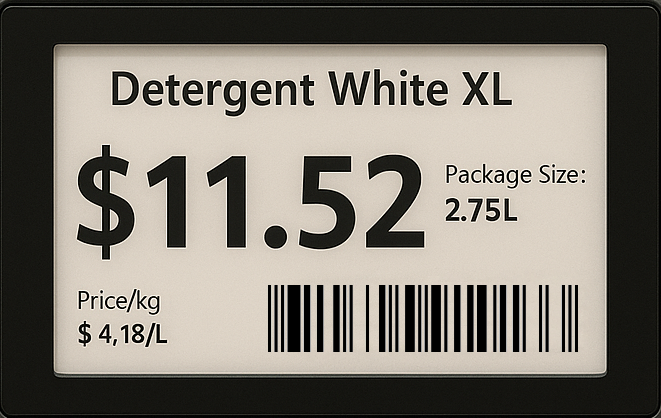
- Price Label: This factory method is designed for price checking scenarios where both barcode and price text need to be captured from product labels. Returns
SKUandpriceTextfields. - VIN Label: A predefined label definition for scanning Vehicle Identification Numbers (VIN). Returns
textand/orbarcodefields. - 7-Segment Display: This definition is used for capturing numeric values from 7-segment displays, such as those found on digital scales or meters. Returns
textfield for weight value.
Example: Price label
Create a label definition for price labels, such as those found in retail environments:
import { Symbology } from 'scandit-react-native-datacapture-barcode';
import {
  CustomBarcode,
  TotalPriceText,
  LabelDefinition,
  LabelCaptureSettings
} from 'scandit-react-native-datacapture-label';

// Create a barcode field for the SKU.
const skuField = CustomBarcode.initWithNameAndSymbologies(
  'SKU',
  [Symbology.EAN13UPCA, Symbology.Code128]
);

// Create a text field for the price.
const priceField = new TotalPriceText('priceText');

// Create a label definition for the price label.
const priceLabel = new LabelDefinition('price-label');
priceLabel.addField(skuField);
priceLabel.addField(priceField);

// Create the label capture settings from the label definitions.
const settings = LabelCaptureSettings.settingsFromLabelDefinitions([priceLabel]);
Custom Labels
If Smart Label Capture’s pre-built options don’t fit your needs, define a custom label instead. Custom labels can combine your own fields with any of the available pre-built ones.
The following characters are recognized: 0123456789ABCDEFGHIJKLMNOPQRSTUVWXYZabcdefghijklmnopqrstuvwxyz ()-./:,$¶".
Custom Fields
There are two types of custom fields you can define:
The following properties are available to configure custom fields:
| Property | Required | Description |
|---|---|---|
symbologies | Yes (barcode fields) | The barcode symbologies to match for barcode fields. This is important for ensuring that the field only captures data from specific barcode types, enhancing accuracy and relevance. |
optional | No | Whether the field is optional or mandatory. This is helpful when certain fields may not be present on every scan. |
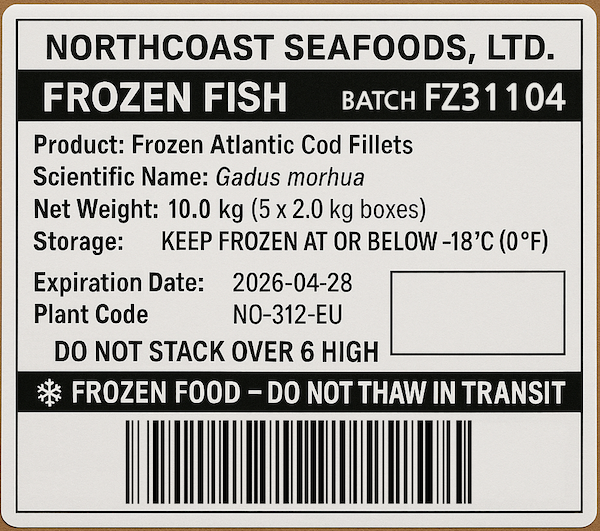
Example: Fish Shipping Box
This example shows how to create a custom label definition for a fish shipping box, which includes fields for barcode and batch number.
import { Symbology } from 'scandit-react-native-datacapture-barcode';
import {
  CustomBarcode,
  CustomText,
  LabelDefinition,
  LabelCaptureSettings
} from 'scandit-react-native-datacapture-label';

// Create a barcode field with Code 128 symbology.
const barcodeField = CustomBarcode.initWithNameAndSymbologies(
  'barcode-field',
  [Symbology.Code128]
);

// Create a custom text field for the batch number.
const batchNumberField = new CustomText('batch-number-field');
batchNumberField.optional = true;

// Create a label definition for the shipping label.
const shippingLabel = new LabelDefinition('shipping-label');
shippingLabel.addField(barcodeField);
shippingLabel.addField(batchNumberField);

// Create the label capture settings.
const settings = LabelCaptureSettings.settingsFromLabelDefinitions([shippingLabel]);
Pre-built Fields
You can also configure your label by using pre-built fields. These are some common fields provided for faster integration, with all patterns, dataTypePattern, and symbologies already predefined.
Customization of pre-built fields is done via the patterns, dataTypePatterns, and isOptional methods, which allow you to specify the expected format of the field data.
All pre-built fields come with predefined patterns that are suitable for most use cases.
Barcode Fields
SerialNumberBarcode: A barcode field for capturing serial numbers, typically used in electronics and appliances.PartNumberBarcode: A barcode field for capturing part numbers, commonly used in manufacturing and inventory management.ImeiOneBarcode: A barcode field for capturing the first International Mobile Equipment Identity (IMEI) number, used in mobile devices.ImeiTwoBarcode: A barcode field for capturing the second International Mobile Equipment Identity (IMEI) number, used in mobile devices.
Price and Weight Fields
UnitPriceText: A text field for capturing the unit price of an item, often used in retail and grocery labels.TotalPriceText: A text field for capturing the total price of an item, typically used in retail and grocery labels.WeightText: A text field for capturing the weight of an item, commonly used in shipping and logistics.
Date and Custom Text Fields
PackingDateText: A text field for capturing the packing date of an item, often used in food and beverage labels.ExpiryDateText: A text field for capturing the expiry date of an item, commonly used in pharmaceuticals and food products.
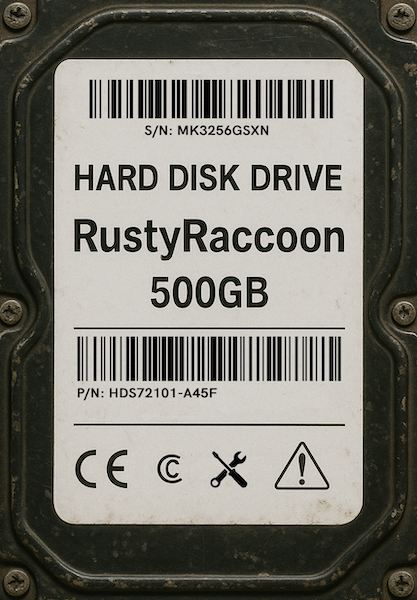
Example: Hard disk drive label
This example demonstrates how to configure a label definition for a hard disk drive (HDD) label, which typically includes common fields like serial number and part number.
import { Symbology } from 'scandit-react-native-datacapture-barcode';
import {
  SerialNumberBarcode,
  PartNumberBarcode,
  LabelDefinition,
  LabelCaptureSettings
} from 'scandit-react-native-datacapture-label';

// Create a serial number barcode field.
// Pre-built fields like SerialNumberBarcode have predefined patterns.
const serialNumberField = SerialNumberBarcode.initWithNameAndSymbology(
  'serial-number',
  Symbology.Code128
);

// Create a part number barcode field.
const partNumberField = PartNumberBarcode.initWithNameAndSymbology(
  'part-number',
  Symbology.Code128
);

// Create a label definition for the HDD label.
const hddLabel = new LabelDefinition('hdd-label');
hddLabel.addField(serialNumberField);
hddLabel.addField(partNumberField);

// Create the label capture settings.
const settings = LabelCaptureSettings.settingsFromLabelDefinitions([hddLabel]);