Not sure which Scandit product fits your use case?
Install the Scandit plugin and use the /data-capture-sdk skill so that your AI coding agent can recommend the right product for your use case. More info →
Run the following command in your project directory. It detects the supported coding agents you have installed and adds the Scandit plugin to each. Re-run it to update.
npx plugins add scandit/skillsPrefer to set it up yourself? Manual installation steps for each agent →
Available Configurations
There are many configuration options and functionalities available in Scandit Express. This section provides an overview of the different configuration options and how to set them up.
Configuration Options
Recognized Symbologies
You can configure which barcode symbologies Scandit Express should recognize. By default, all symbologies are enabled. You can disable symbologies that are not needed to improve scanning performance.
- Login to your Scandit Dashboard.
- Click on the Project card you want to configure.
- For each symbology, you can enable or disable it via the corresponding toggle.
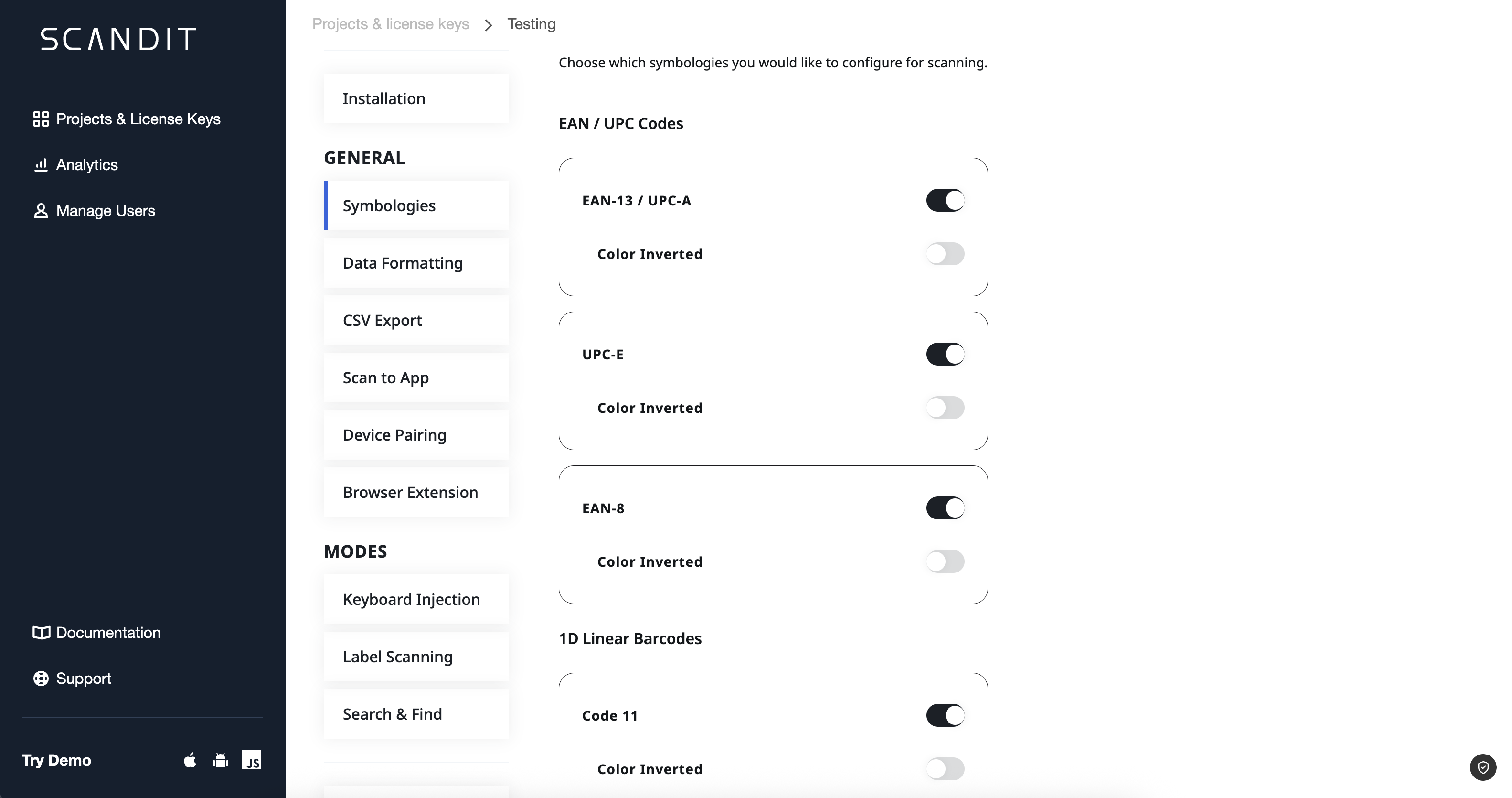
- Reload the configuration in your app to apply the changes.
If you want to further restrict what barcodes are accepted by Scandit Express, you can define a specific match as a regular expression. Only barcode data matching the specified regular expression will be accepted.
The corresponding field is in the barcodeRegexValidation section.

Keystroke Injection
You can configure Scandit Express to inject additional keystrokes after a barcode is scanned. This is useful if you want to automate the process of entering data into a form or application.
- Login to your Scandit Dashboard.
- Click ont the Project card you want to configure.
- Using the
appendKeyPresssection, you can define the keypresses that should be injected after a barcode is scanned.nullmeans no keypresses will be injected.enterwill inject an Enter keypress.\nfor Return Carriage.tabfor Tab.
- Reload the configuration in your app to apply the changes.
Scanning Options
Scandit Express has two scanning modes: Single and Batch. You can also turn on list building to collect your scans in a list.
Single
Use Single mode to scan one barcode at a time. Point the camera at a barcode and Scandit Express scans it. If several barcodes are close together, choose the one you want.
Single mode, also called Smart Scan Selection, is available from Scandit Express 4.3.0 on iOS and 4.4.0 on Android. It replaces the Accuracy and Speed modes of earlier versions.
Batch
Use Batch mode to scan all visible barcodes at once, for example when you have many barcodes in view.
To use Batch mode, you need a MatrixScan license and list building turned on.
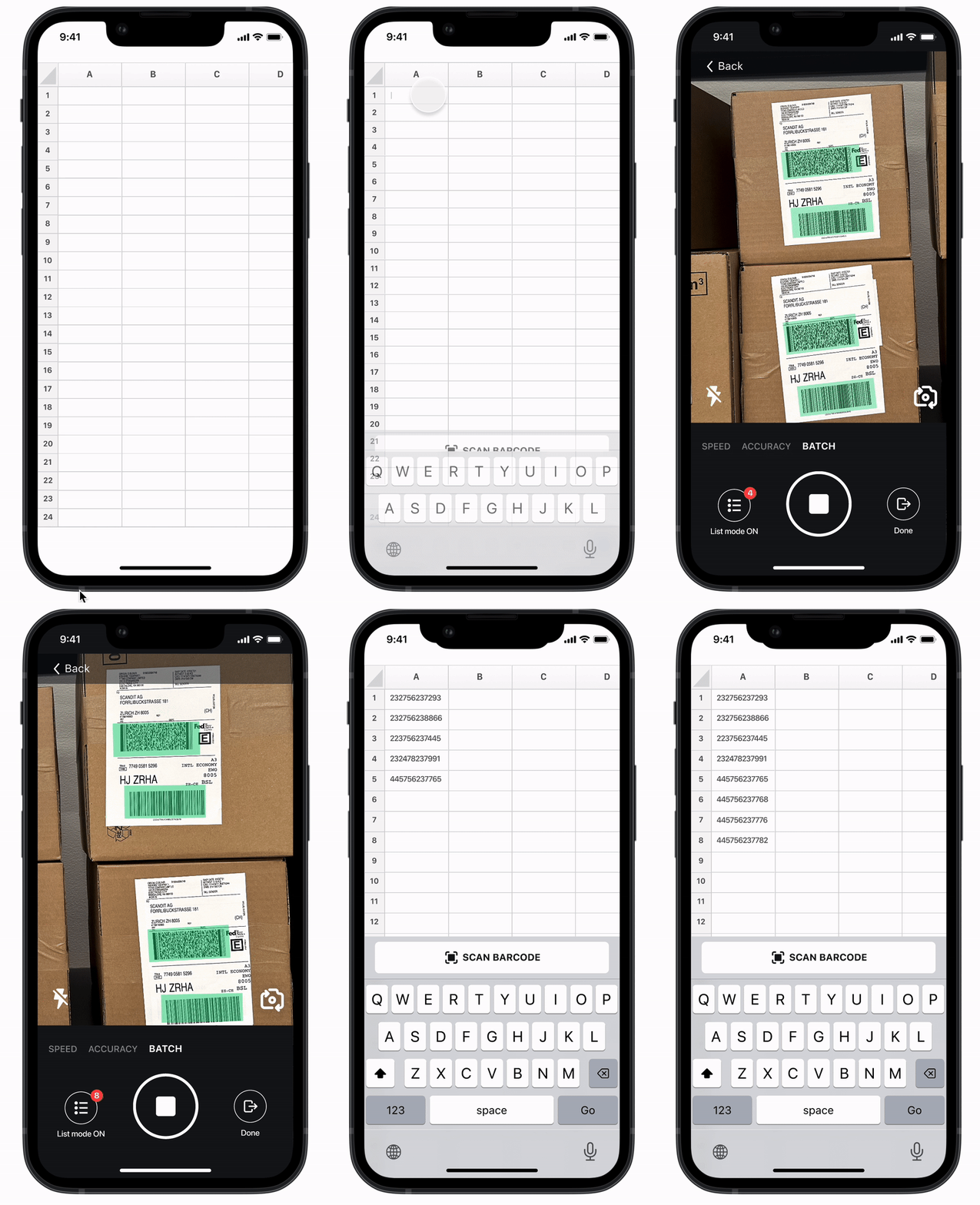
List Building
List building collects your scans in a list. You check the list, and then Scandit Express types the barcodes into the field. List building works in Single and Batch mode. It doesn't need a MatrixScan license, but Batch mode does.
Activate via Hardware Button
This feature is only supported for Android devices, and must be enabled by the Scandit Support team on your account. Contact us using this webform and include the following information:
- Your Scandit account email address.
- The project name you want to enable the feature for.
- The device models you want to enable the feature for.
- The key codes you want to use to trigger the barcode scanner.
You can identify the key code with key code identifier apps available in the Play Store, such as KeyEvent Display.
Parse and Sort Data
Scandit Express gives you several options to parse the scanned data for such formats as:
- Health Industry Barcodes (HIBC)
- GS1 Application Identifiers
- VIN Numbers
- Swiss QR Codes
You can parse and sort the scanned data either directly from Scandit Express, using the Scan barcodes tile in the Scan and Export section, or through keyboard injection. All scanning modes will return parsed data.
Please contact Scandit Support if you would like to have parser capabilities enabled in your account and we will support you with the necessary details for your specific use case.