Not sure which Scandit product fits your use case?
Install the Scandit plugin and use the /data-capture-sdk skill so that your AI coding agent can recommend the right product for your use case. More info →
Run the following command in your project directory. It detects the supported coding agents you have installed and adds the Scandit plugin to each. Re-run it to update.
npx plugins add scandit/skillsPrefer to set it up yourself? Manual installation steps for each agent →
Safari Browser Extension
The Safari Browser Extension is an alternative to the Scandit Express Keyboard. It allows barcode data to be scanned and injected directly into web applications running inside Safari on iOS devices.
Instead of typing from the Express Keyboard, users can trigger the scanner via a button next to text fields in a webpage. This is especially useful for workflows where scanning should be initiated directly from the application interface.
Installation
The Safari Browser Extension is bundled with the Scandit Express app as an extension (.appex).
- When the Scandit Express app is installed, the Safari extension is also installed but must be enabled by the user.
By default, Safari will ask for permission to run the extension on websites and users can choose:
- Allow Once
- Always Allow
- Deny
Once enabled, the extension is visible in the Safari toolbar.
Both the extension icon and the pop-up UI can be customized.
How It Works
When enabled, the extension automatically adds a Scan button next to input fields in Safari webpages.
- The user taps the Scan button next to a text field.
- Safari opens a deep link to the Scandit Express app.
- The Express scanner is launched, and the scanned barcode is stored in shared storage.
- Safari is brought back into focus.
- The extension retrieves the scan result and inserts it into the selected input field.
Configuration
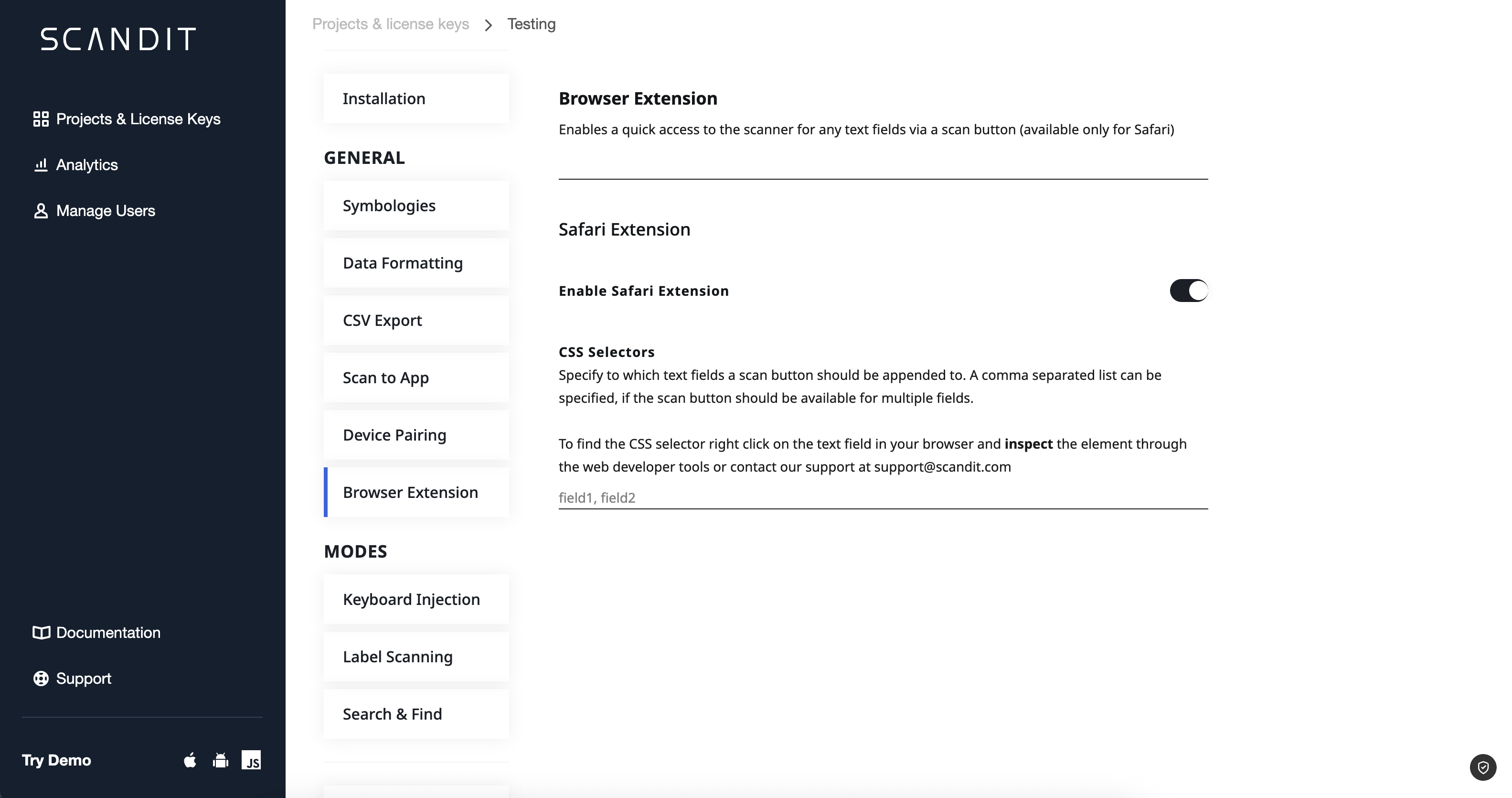
The Safari extension can be configured via the Scandit Dashboard from the General > Browser Extension section.
Default Behavior
By default, the extension attaches a scan button next to every <input type="text"> field on the page.
Restricting Buttons to Specific Fields
Developers can limit the scan button to appear only for specific fields by providing CSS selectors.