Advanced Configurations
Customize the Overlay Appearance
To customize the appearance of the overlay, you can implement a LabelCaptureBasicOverlayListener.
The method brushForLabel() is called every time a label captured and brushForFieldOfLabel() is called for each of its fields to determine the brush for the label or field.
// Create the overlay for the label capture mode.
const overlay = new LabelCaptureBasicOverlay(labelCapture);

// Set the listener to customize the appearance of captured labels and fields.
overlay.listener = {
    /**
     * Called for each field of a captured label to determine its brush.
     * Return a Brush to customize the field's appearance, or null to use the default.
     */
    brushForFieldOfLabel: (overlay, field, label) => {
        // Create colors with transparency (alpha 0.5 = 50% opacity).
        const cyanColor = Color.fromRGBA(0, 255, 255, 0.5);
        const orangeColor = Color.fromRGBA(255, 165, 0, 0.5);

        switch (field.name) {
            case "<your-barcode-field-name>":
                // Highlight barcode fields with a cyan color.
                return new Brush(cyanColor, cyanColor, 0);
            case "<your-expiry-date-field-name>":
                // Highlight expiry date fields with an orange color.
                return new Brush(orangeColor, orangeColor, 0);
            default:
                // Use a transparent brush for other fields.
                return Brush.transparent;
        }
    },
    /**
     * Called for each captured label to determine its brush.
     * Return a Brush to customize the label's appearance, or null to use the default.
     */
    brushForLabel: (overlay, label) => {
        // Use a transparent brush for the label itself.
        return Brush.transparent;
    },
    /**
     * Called when the user taps on a label.
     */
    didTapLabel: (overlay, label) => {
        // Handle user tap gestures on the label.
    }
};

// Add the overlay to the data capture view.
dataCaptureView.addOverlay(overlay);
Use brush colors with transparency (alpha < 100%) to not occlude the captured barcodes or texts.
Validation Flow
How It Works
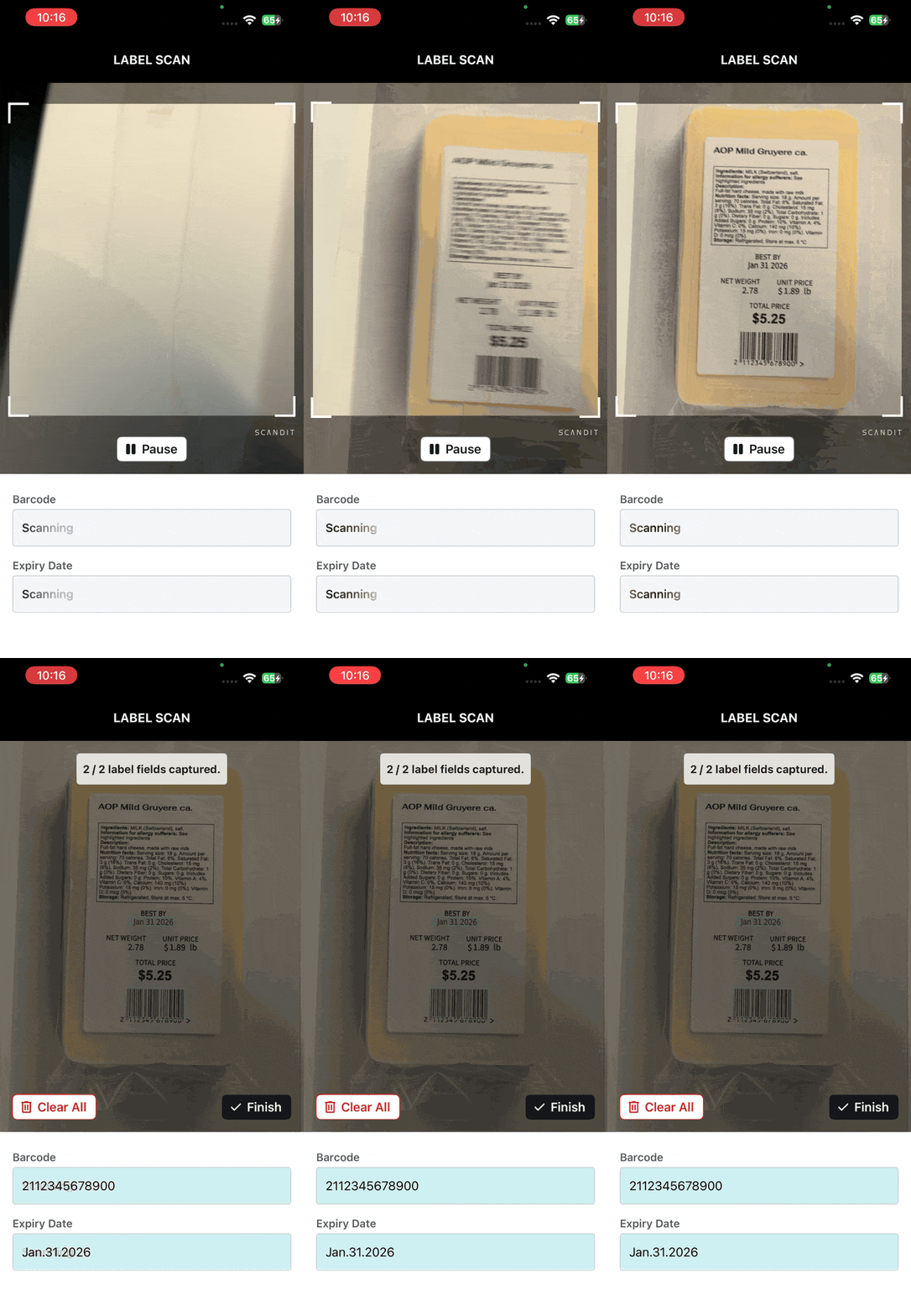
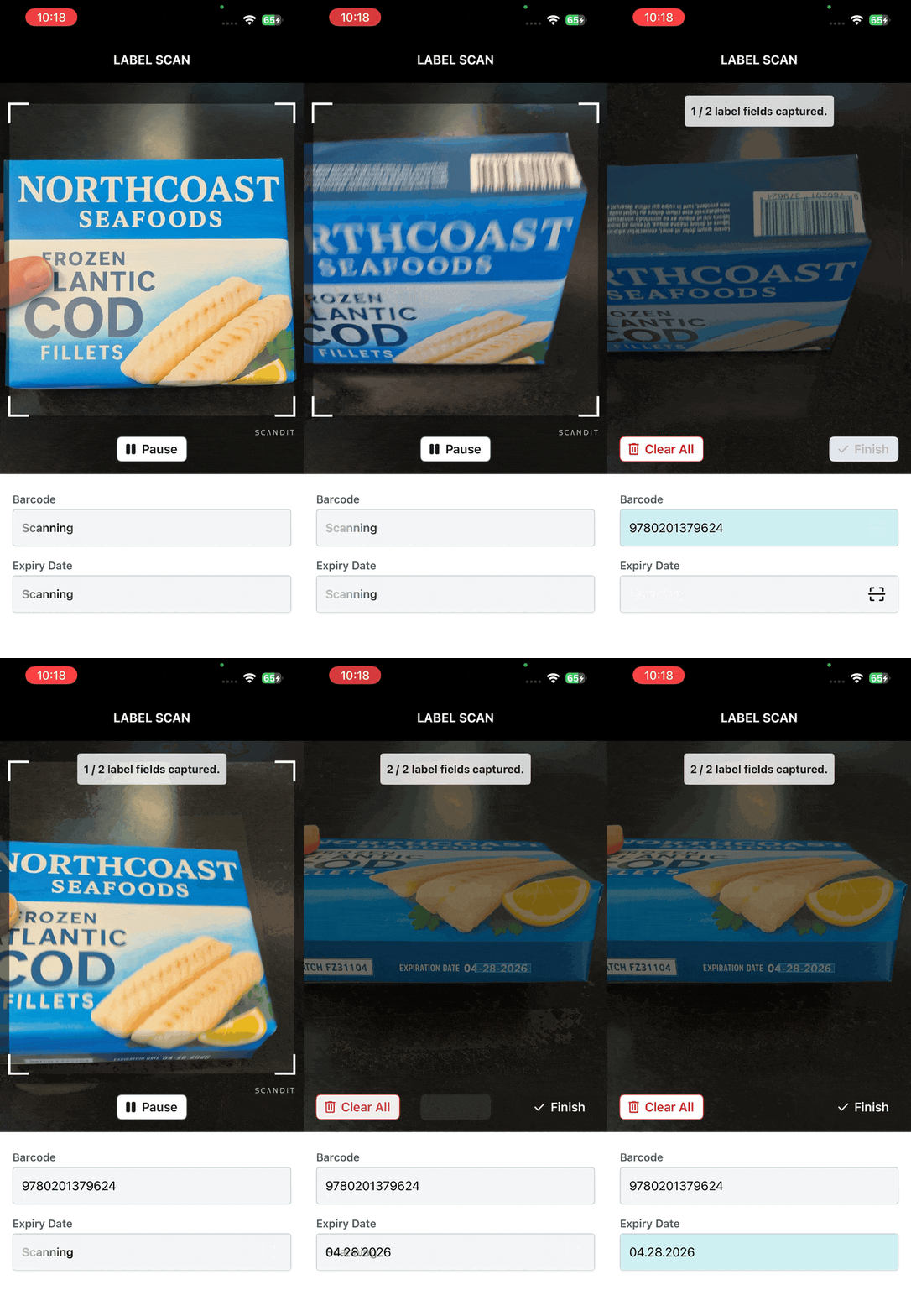
The Validation Flow provides a guided label scanning experience. An always-present checklist shows users exactly which fields have been captured and which are still missing, making the scanning process transparent and efficient. Scanning is the fastest way to capture all label content — whether all fields are visible at once or spread across different sides of a package.
The fields shown in the checklist are driven by your Label Definition — the configuration that tells Label Capture which fields to recognize and extract. See the Label Definitions guide for details on how to set them up.
The Validation Flow overlay is a UI component built on top of Label Capture. To use it, create a LabelCaptureValidationFlowOverlay and add it to your data capture view.
| Single-Step Scan | Multi-Step Scan |
|---|---|
| All fields are visible together | Fields on different sides of the package |
 |  |
// Create the overlay
const validationFlowOverlay = new LabelCaptureValidationFlowOverlay(labelCapture);
dataCaptureView.addOverlay(validationFlowOverlay);

// Set the listener to receive validation events
validationFlowOverlay.listener = validationFlowListener;
Define a Listener
When the user has verified that all fields are correctly captured and presses the finish button, the Validation Flow triggers a callback with the final results. To receive these results, implement the LabelCaptureValidationFlowListener interface:
const validationFlowListener = {
    // This is called by the validation flow overlay when a label has been fully captured and validated
    didCaptureLabelWithFields: (fields) => {
        const barcodeData = fields.find(f => f.name === "<your-barcode-field-name>")?.barcode?.data;
        const expiryDate = fields.find(f => f.name === "<your-expiry-date-field-name>")?.text;

        // Handle the captured values
    }
};
Required and Optional Fields
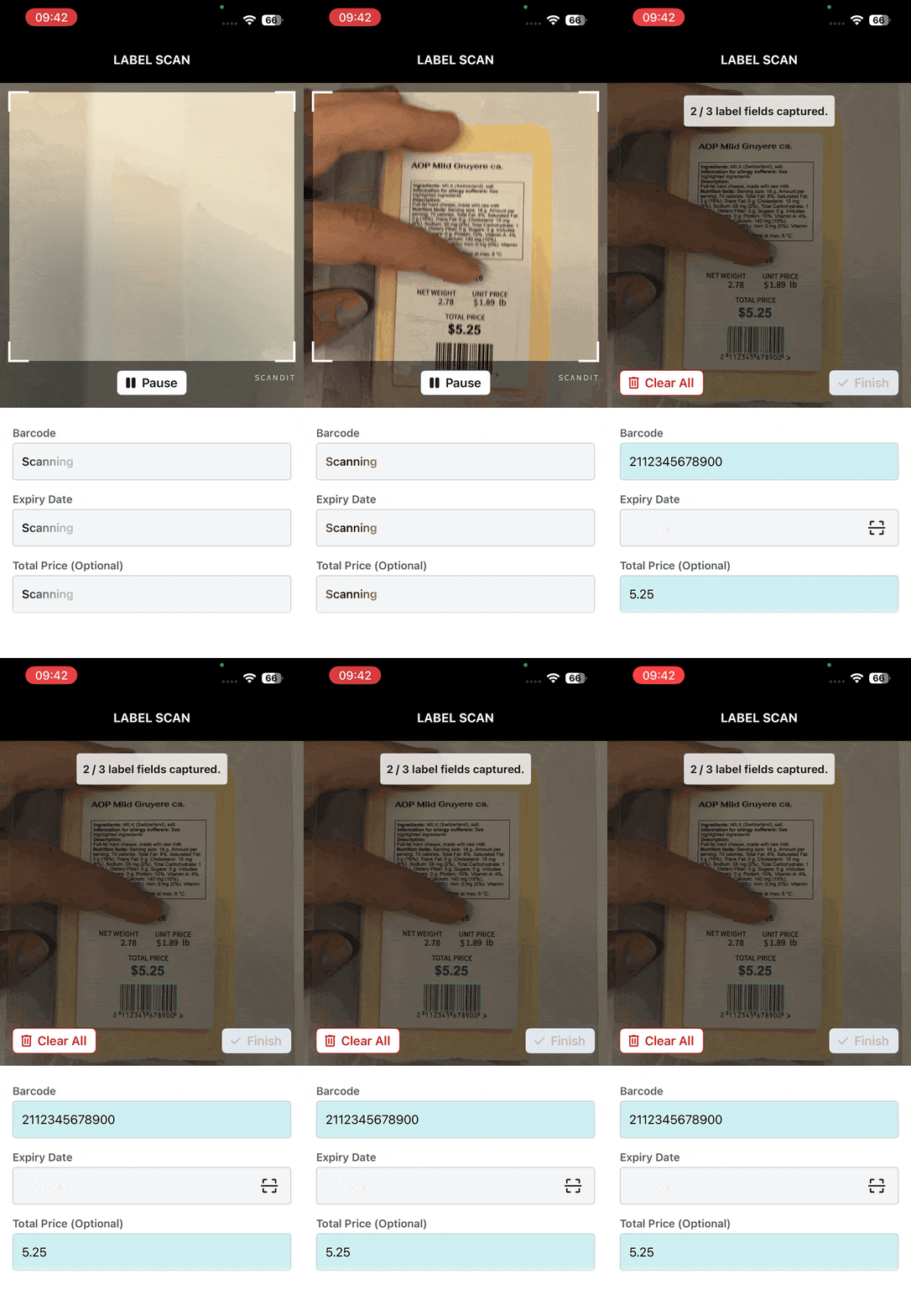
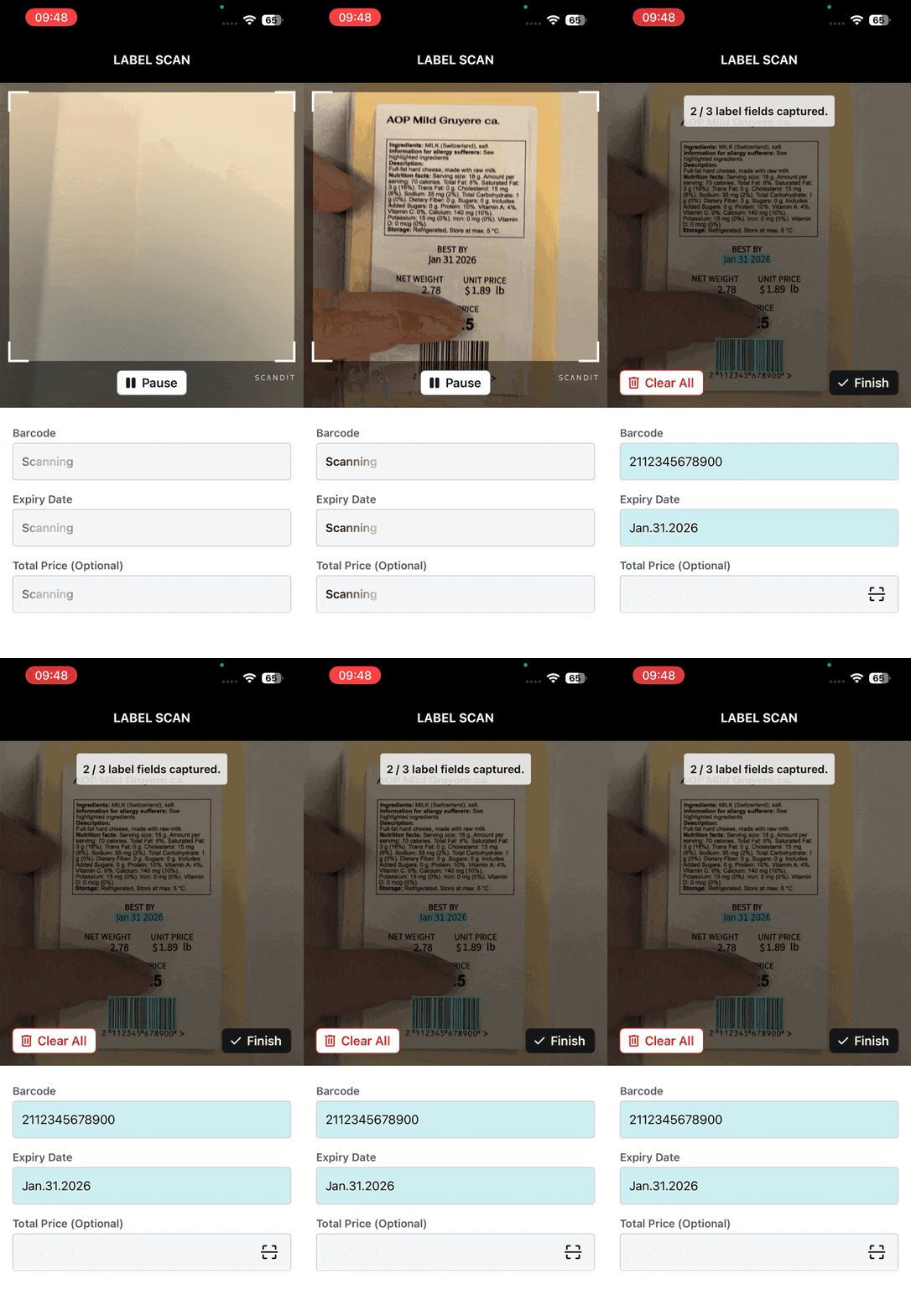
The Validation Flow clearly indicates which fields must be captured and which are optional. Required fields are visually highlighted and the flow can only be completed once all of them have been successfully scanned or manually entered. Optional fields are shown but do not block the user from finishing.
| Required Field | Optional Field |
|---|---|
| Must be captured to finish the flow | Does not block finishing |
 |  |
Typing Hints
If neither on-device nor cloud-based scanning can capture a field, the user can always manually enter the value. To make manual input easier and reduce errors, you can configure placeholder text (typing hints) that show the expected format directly in the input field.
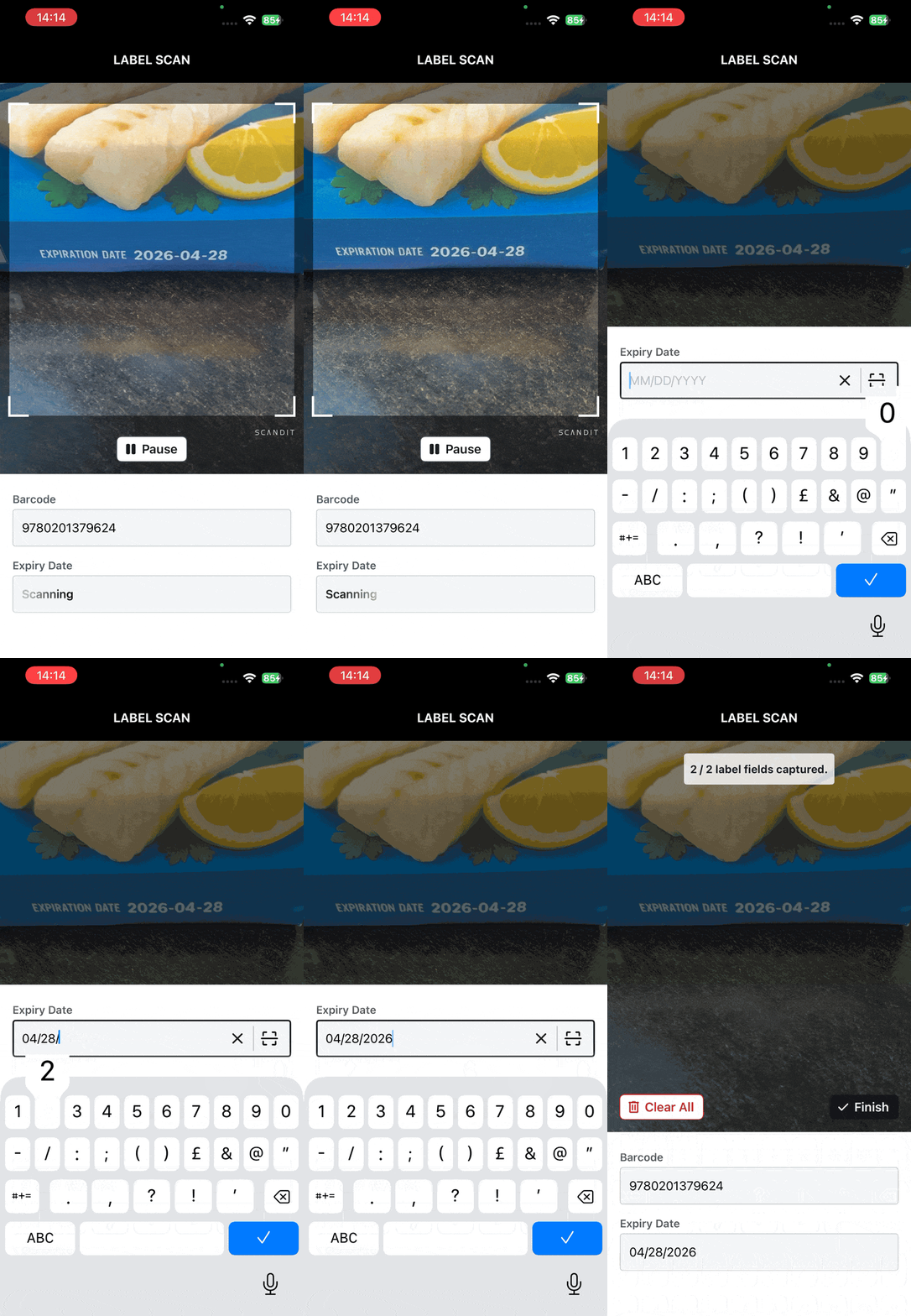
The field name in the label definition is used as the reference for setting placeholder text:
const validationFlowOverlaySettings = LabelCaptureValidationFlowSettings.create();
validationFlowOverlaySettings.setPlaceholderTextForLabelDefinition("Expiry Date", "MM/DD/YYYY");

validationFlowOverlay.applySettings(validationFlowOverlaySettings);
Customization
All text in the Validation Flow overlay can be adjusted to match your application's needs. This is useful for localization, adapting terminology, or removing text entirely for a minimal interface.
Buttons
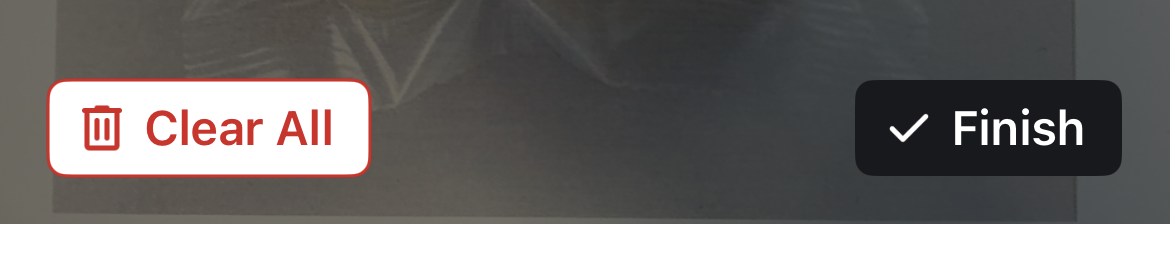
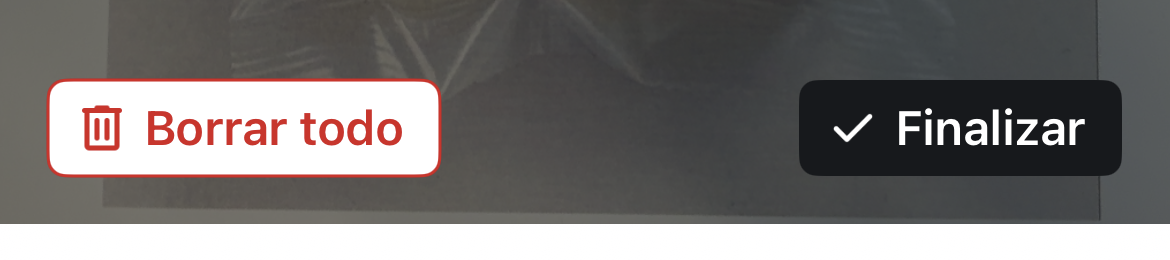
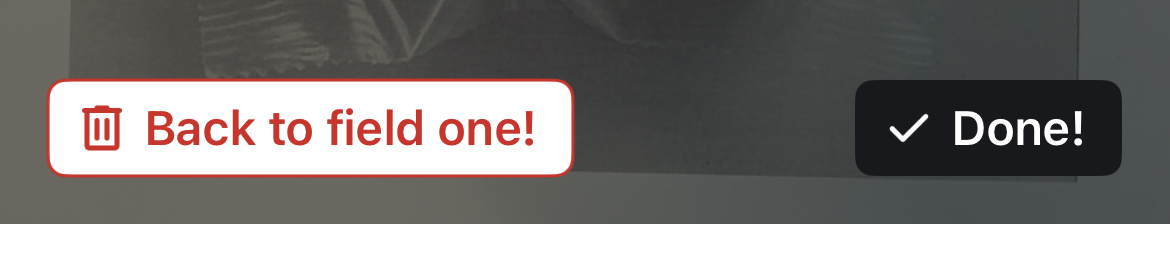
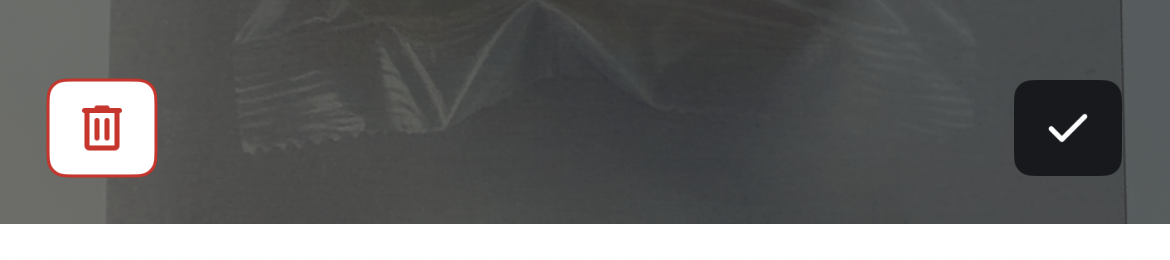
The text on the restart, pause, and finish buttons can be customized or removed entirely.
| English (Default) | Custom Language | Company Slang | No Text |
|---|---|---|---|
 |  |  |  |
const validationFlowOverlaySettings = LabelCaptureValidationFlowSettings.create();
validationFlowOverlaySettings.restartButtonText = "Borrar todo";
validationFlowOverlaySettings.pauseButtonText = "Pausar";
validationFlowOverlaySettings.finishButtonText = "Finalizar";

validationFlowOverlay.applySettings(validationFlowOverlaySettings);
Toasts
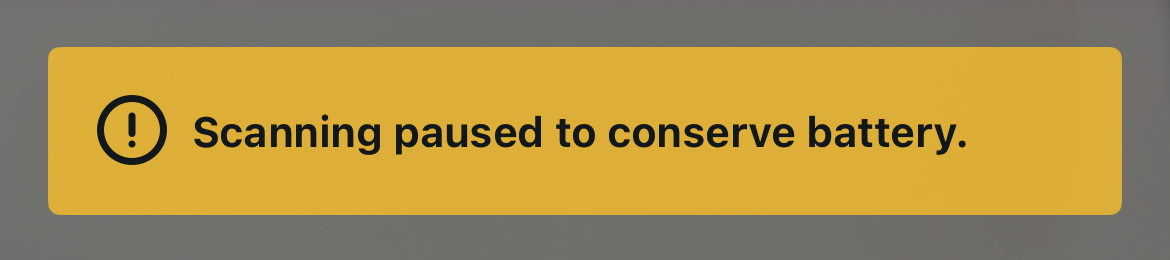
Toast messages appear at the top of the camera preview to inform the user about a scanning state change. The standby toast is shown when the camera is auto-paused after no label is detected for a long time. The validation toast shows how many fields have been captured so far after a scan.
| Standby | Validation |
|---|---|
 |  |
const validationFlowOverlaySettings = LabelCaptureValidationFlowSettings.create();
validationFlowOverlaySettings.standbyHintText = "No label detected, camera paused";
validationFlowOverlaySettings.validationHintText = "data fields collected"; // X/Y (X fields out of total Y) is shown in front of this string

validationFlowOverlay.applySettings(validationFlowOverlaySettings);
Field
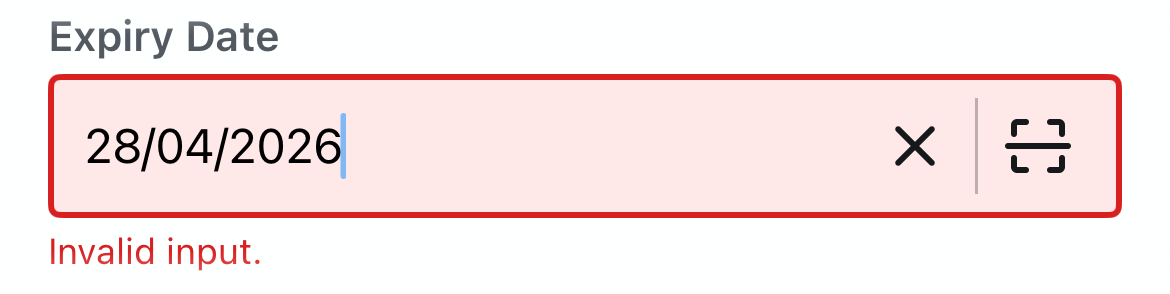
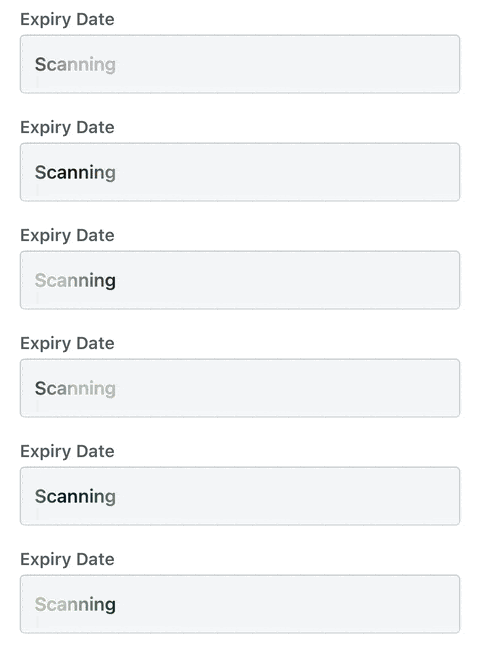
The field state texts are shown inside the input field itself during different phases of scanning.
| Invalid Input | Scanning Text | Adaptive Scanning Text |
|---|---|---|
| Shown when manual input does not match the expected format | Shown while the camera is actively scanning | Shown while cloud-based recognition is processing |
 |  | |
const validationFlowOverlaySettings = LabelCaptureValidationFlowSettings.create();
validationFlowOverlaySettings.validationErrorText = "Incorrect format.";
validationFlowOverlaySettings.scanningText = "Scan in progress";
validationFlowOverlaySettings.adaptiveScanningText = "Processing";

validationFlowOverlay.applySettings(validationFlowOverlaySettings);
Cloud Fallback
The Adaptive Recognition API is still in beta and may change in future versions of Scandit Data Capture SDK. To enable it on your subscription, please contact support@scandit.com.
The Adaptive Recognition Engine helps making Smart Label Capture more robust and scalable thanks to its larger, more capable model hosted in the cloud. Whenever Smart Label Capture's on-device model fails to capture data, the SDK will automatically trigger the Adaptive Recognition Engine to capture complex, unforeseen data and process it with high accuracy and reliability — avoiding the need for the user to type data manually.
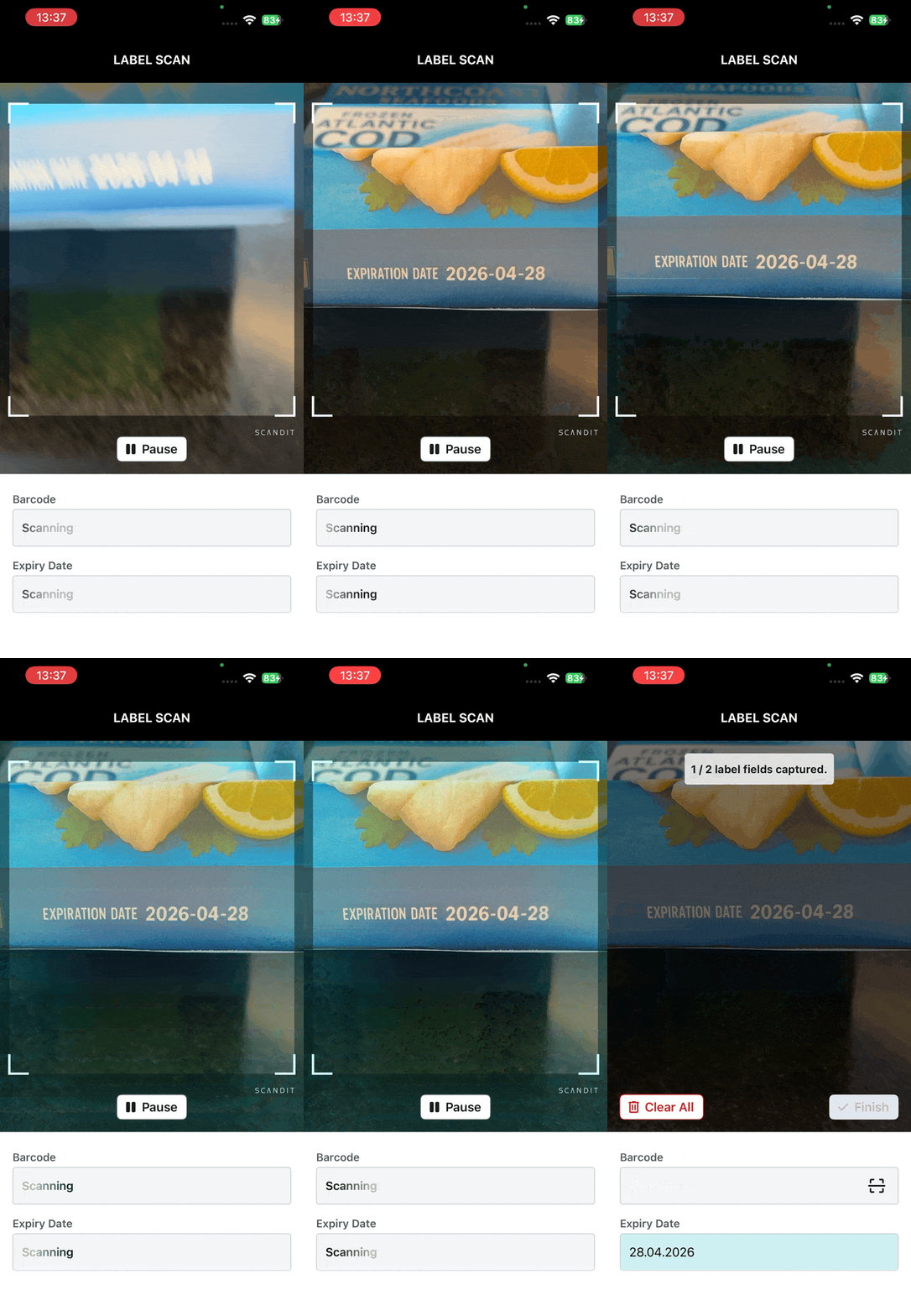
Enable Adaptive Recognition by setting the mode to .auto on the label definition. This is a single extra line added to your existing label definition configuration:
const customBarcode = CustomBarcode.initWithNameAndSymbologies('Barcode', [
  Symbology.EAN13UPCA,
  Symbology.GS1DatabarExpanded,
  Symbology.Code128,
]);
customBarcode.optional = false;

const expiryDateText = new ExpiryDateText('Expiry Date');
expiryDateText.labelDateFormat = new LabelDateFormat(LabelDateComponentFormat.MDY, false);
expiryDateText.optional = false;

const label = new LabelDefinition('Retail Item');
label.fields = [customBarcode, expiryDateText];
label.adaptiveRecognitionMode = AdaptiveRecognitionMode.Auto;

const settings = LabelCaptureSettings.settingsFromLabelDefinitions([label], {});
See AdaptiveRecognitionMode for available options.