Installation
This guide shows you how to add the Scandit Data Capture SDK to your existing project.
Prerequisites
- The latest stable version of React Native CLI and other related tools and dependencies.
- A project with:
- minimum node version of 18 or higher.
- minimum iOS deployment target of 15.0 or higher
- an Android project with target SDK version 23 (Android 6, Marshmallow) or higher (version 24 or higher for ID Capture)
- A valid Scandit Data Capture SDK license key. You can sign up for a free test account.
Android devices running the Scandit Data Capture SDK need to have a GPU or the performance will drastically decrease.
Internal Dependencies
Certain Scandit Data Capture SDK modules have package dependencies.
| Module | Dependencies | Optional Dependencies |
|---|---|---|
| scandit-react-native-datacapture-core | None | None |
| scandit-react-native-datacapture-barcode | scandit-react-native-datacapture-core | None |
| scandit-react-native-datacapture-id | scandit-react-native-datacapture-core | scandit-react-native-datacapture-id-europe-driving-license scandit-react-native-datacapture-id-aamva-barcode-verification scandit-react-native-datacapture-id-voided-detection |
| scandit-react-native-datacapture-parser | None | None |
| scandit-react-native-datacapture-label | scandit-react-native-datacapture-core scandit-react-native-datacapture-barcode | scandit-react-native-datacapture-label-text scandit-react-native-datacapture-price-label |
When using ID Capture or Label Capture, consult the respective module's getting started guides to identify the optional dependencies required for your use case. The modules you need to include will vary based on the features you intend to use.
Please be aware that your license may only cover a subset of Barcode and/or ID Capture features. If you require additional features, contact us.
Get a License Key
If you have a paid subscription, please reach out to Scandit Support if you need a new license key.
Add the SDK
Choose your preferred installation method below. Installing from the package registry is simpler and recommended for most users, while manual installation gives you more control over the SDK version.
You should always make sure to add the scandit-react-native-datacapture-core plugin, as all other plugins depend on it.
Create a new project
If you do not have a React Native project yet that you'll use, you should create a new one.
react-native init HelloScandit
cd HelloScandit
- Install from Package Registry (Recommended)
- Install Manually from Dashboard
Install from Package Registry
To add Scandit plugins from the package registry, run the corresponding commands from your project's root folder.
Install the core plugin (required):
- Yarn
- npm
yarn add scandit-react-native-datacapture-core
npm install scandit-react-native-datacapture-core
Then add the plugin(s) for your desired functionality:
- Yarn
- npm
# For barcode scanning
yarn add scandit-react-native-datacapture-barcode

# For ID capture
yarn add scandit-react-native-datacapture-id

# For label capture
yarn add scandit-react-native-datacapture-label
# For barcode scanning
npm install scandit-react-native-datacapture-barcode

# For ID capture
npm install scandit-react-native-datacapture-id

# For label capture
npm install scandit-react-native-datacapture-label
You can add only the plugins you need as described in the Internal Dependencies section. You can also specify a version @<version>.
Install Manually from Dashboard
Step 1: Download the SDK from Scandit Dashboard
- Navigate to the Scandit Dashboard Downloads page
- Sign in to your Scandit account
- Locate the React Native section
- Click the Download button to download the latest React Native SDK archive (
.zipfile)
Step 2: Extract and locate the plugins
- Extract the downloaded
.zipfile to a location of your choice (e.g.,~/Downloads/scandit-react-native-sdk/) - The extracted archive contains multiple React Native plugin folders, each representing a different SDK module.
Step 3: Install the plugins to your project
Navigate to your React Native project root directory and install the plugins using their local paths.
Install the core plugin (required):
- Yarn
- npm
yarn add file:../path/to/extracted/scandit-react-native-datacapture-core
npm install file:../path/to/extracted/scandit-react-native-datacapture-core
Then add the plugin(s) for your desired functionality:
- Yarn
- npm
# For barcode scanning
yarn add file:../path/to/extracted/scandit-react-native-datacapture-barcode

# For ID capture
yarn add file:../path/to/extracted/scandit-react-native-datacapture-id

# For label capture
yarn add file:../path/to/extracted/scandit-react-native-datacapture-label
# For barcode scanning
npm install file:../path/to/extracted/scandit-react-native-datacapture-barcode

# For ID capture
npm install file:../path/to/extracted/scandit-react-native-datacapture-id

# For label capture
npm install file:../path/to/extracted/scandit-react-native-datacapture-label
Additional steps on iOS
- Camera permissions are required to stream the frame source data into various capture modes. You need to set the “Privacy - Camera Usage Description” field in the Info.plist file for iOS.
<key>NSCameraUsageDescription</key>
<string>Access to the camera is required for scanning.</string>
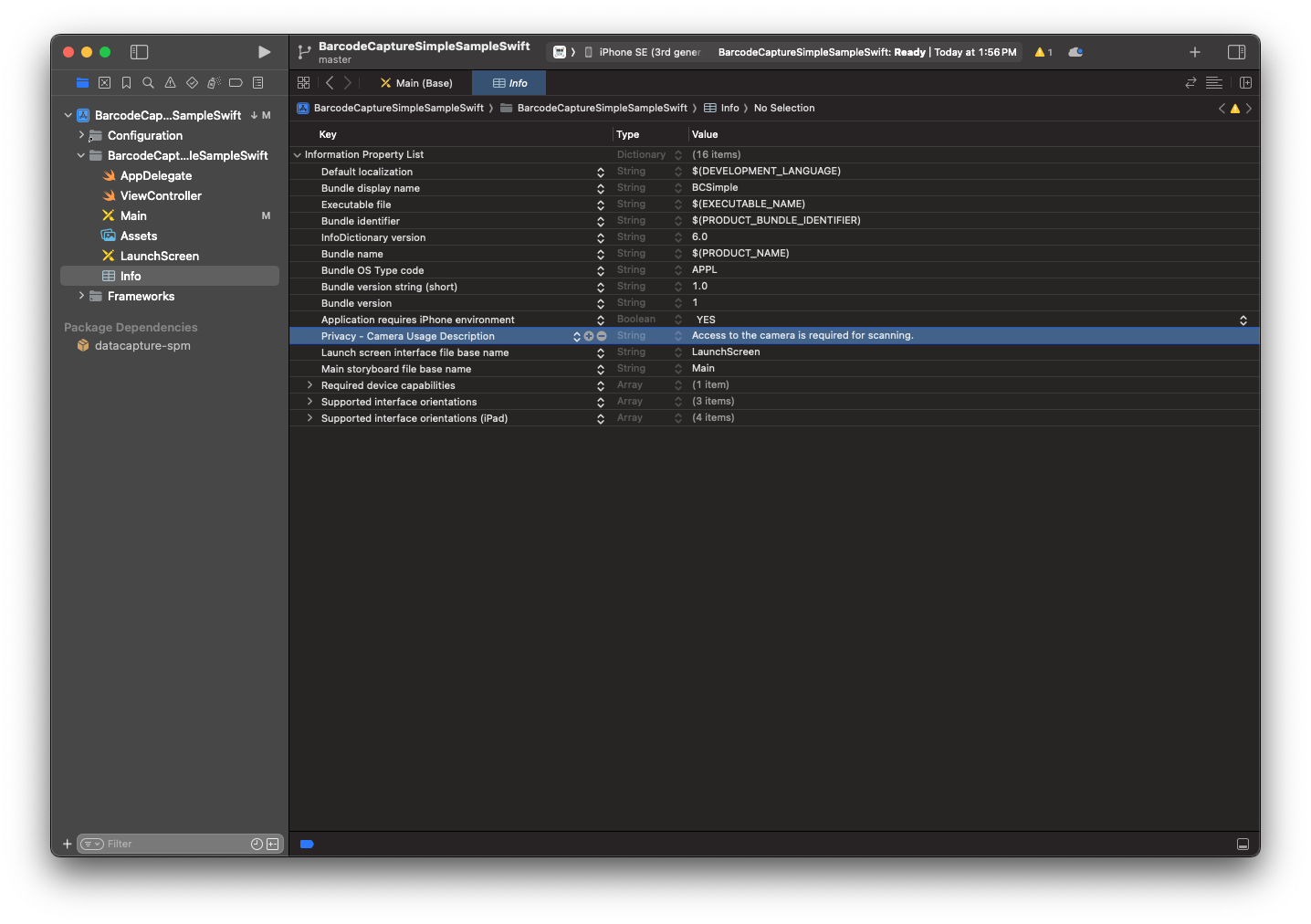
- Then, install the iOS Cocoapods after installing the React Native
node_modules:
cd ios && pod install && cd ..
Additional Information
Android Content Providers
On Android, the Scandit SDK uses content providers to initialize the scanning capabilities properly. If your own content providers depend on the Scandit SDK, choose an initOrder lower than 10 to make sure the SDK is ready first.
If not specified, initOrder is zero by default and you have nothing to worry about.
Check the official <provider> documentation.
Camera Permissions
When using the Scandit Data Capture SDK you will want to set the camera as the frame source for various capture modes. On Android, you have to request camera permissions in your own application before starting scanning. To see how you can achieve this, take a look at our samples.
Third-party Licenses
The Scandit Data Capture SDK relies on several third-party, open-source software libraries. Your application must display the license information for these libraries in many cases.
The Scandit SDK provides a convenient API that you can use to fetch the corresponding text and attributions for all third-party software:
DataCaptureContext.getOpenSourceSoftwareLicenseInfo()