Label Definitions
A Label Definition is a configuration that defines the label, and its relevant fields, that Smart Label Capture should recognize and extract during scans.
Smart Label Capture provides a Label Definition API, enabling you to configure and extract structured data from predefined and custom labels. This feature provides a flexible way to recognize and decode fields within a specific label layout such as price tags, VIN labels, or packaging stickers without needing to write custom code for each label type.
There are two approaches to using label definitions:
Pre-built Labels
Smart Label Capture includes ready-made label definitions for common use cases. These pre-built options let you recognize and extract information from standard label types without creating custom configurations:
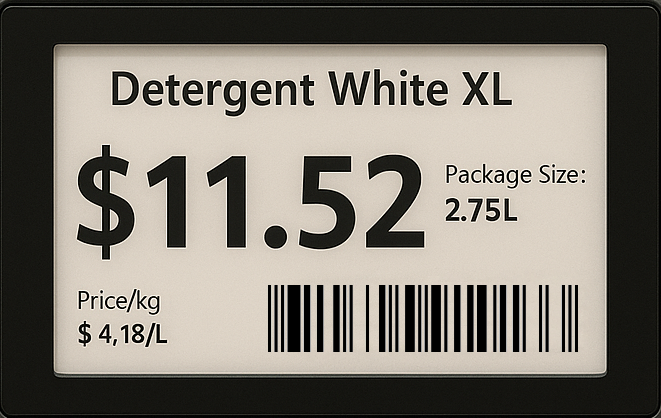
Example: Price label
Use LabelDefinition.createPriceCaptureDefinition() to create a pre-built label definition for price labels, such as those found in retail environments:
import { LabelCaptureSettings, LabelDefinition } from "scandit-capacitor-datacapture-label";

// Create a pre-built price capture label definition.
const priceLabel = LabelDefinition.createPriceCaptureDefinition("price-label");

// Create the label capture settings from the label definition.
const settings = LabelCaptureSettings.settingsFromLabelDefinitions([priceLabel], null);
Custom Labels
If Smart Label Capture’s pre-built options don’t fit your needs, define a custom label instead. Custom labels can combine your own fields with any of the available pre-built ones.
The following characters are recognized: 0123456789ABCDEFGHIJKLMNOPQRSTUVWXYZabcdefghijklmnopqrstuvwxyz ()-./:,$¶".
Custom Fields
There are two types of custom fields you can define:
The following properties are available to configure custom fields:
| Property | Required | Description |
|---|---|---|
valueRegexes | Yes | The regex patterns that identify the target string in the scanned content. |
anchorRegexes | No | Used to specify keywords or phrases that help identify the context of the field. This is particularly useful when the label contains multiple fields that could match the same pattern (e.g., when both packaging and expiry dates are present). |
symbologies | Yes (barcode fields) | The barcode symbologies to match for barcode fields. This is important for ensuring that the field only captures data from specific barcode types, enhancing accuracy and relevance. |
optional | No | Whether the field is optional or mandatory. This is helpful when certain fields may not be present on every scan. |
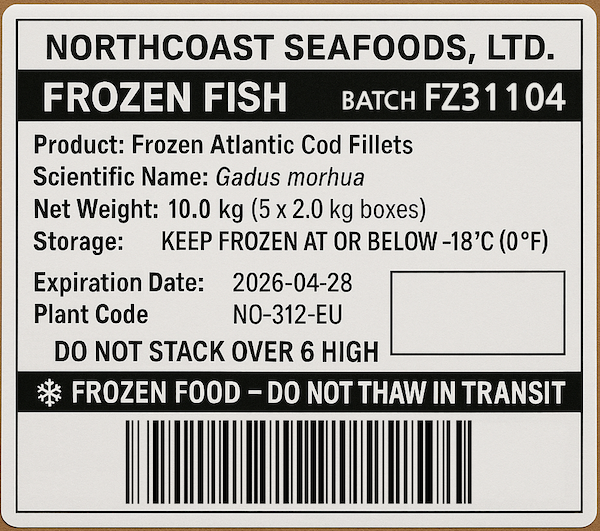
Example: Fish Shipping Box
This example shows how to create a custom label definition for a fish shipping box, which includes fields for barcode and batch number.
import { Symbology } from "scandit-capacitor-datacapture-barcode";
import {
    CustomBarcode,
    CustomText,
    LabelCaptureSettings,
    LabelDefinition,
} from "scandit-capacitor-datacapture-label";

// Create a custom label definition for a fish shipping box.
const shippingLabel = new LabelDefinition("shipping-label");

// Add a barcode field with Code 128 symbology.
const barcodeField = CustomBarcode.initWithNameAndSymbology("barcode-field", Symbology.Code128);
shippingLabel.addField(barcodeField);

// Add a custom text field for the batch number.
// Use anchorRegexes to specify keywords that help identify the field context.
// Use valueRegexes to specify the expected format of the field data.
const batchNumberField = new CustomText("batch-number-field");
batchNumberField.anchorRegexes = ["Batch"];
batchNumberField.valueRegexes = ["FZ\\d{5,10}"];
batchNumberField.optional = true;
shippingLabel.addField(batchNumberField);

// Create the label capture settings from the label definition.
const settings = LabelCaptureSettings.settingsFromLabelDefinitions([shippingLabel], null);
Pre-built Fields
You can also build your label using pre-built fields. These common fields speed up integration because their valueRegexes, anchorRegexes, and symbologies are already predefined.
Customization of pre-built fields is done via the valueRegexes, anchorRegexes, and isOptional methods, which allow you to specify the expected format of the field data.
All pre-built fields come with default valueRegexes and anchorRegexes that are suitable for most use cases. Setting either property is optional and will override the defaults.
You can set anchorRegexes to an empty array to remove the default anchor patterns, allowing you to rely solely on the valueRegexes for detection.
Barcode Fields
Price and Weight Fields
Date and Custom Text Fields
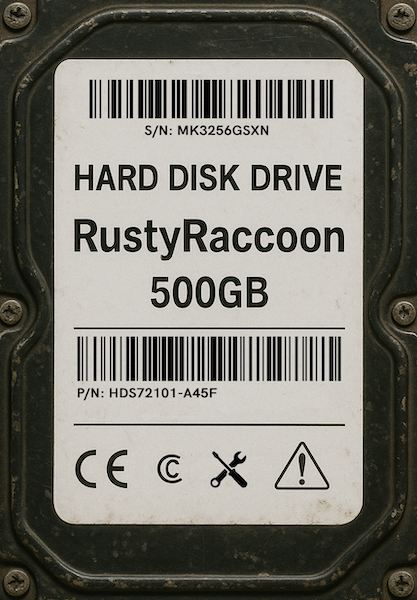
Example: Hard disk drive label
This example demonstrates how to configure a label definition for a hard disk drive (HDD) label, which typically includes common fields like serial number and part number.
import { Symbology } from "scandit-capacitor-datacapture-barcode";
import {
    LabelCaptureSettings,
    LabelDefinition,
    PartNumberBarcode,
    SerialNumberBarcode,
} from "scandit-capacitor-datacapture-label";

// Create a custom label definition for an HDD label.
const hddLabel = new LabelDefinition("hdd-label");

// Add a serial number barcode field.
// Pre-built fields like SerialNumberBarcode have predefined valueRegexes and anchorRegexes.
const serialNumberField = SerialNumberBarcode.initWithNameAndSymbology("serial-number", Symbology.Code128);
hddLabel.addField(serialNumberField);

// Add a part number barcode field.
const partNumberField = PartNumberBarcode.initWithNameAndSymbology("part-number", Symbology.Code128);
hddLabel.addField(partNumberField);

// Create the label capture settings from the label definition.
const settings = LabelCaptureSettings.settingsFromLabelDefinitions([hddLabel], null);