Speed up SparkScan integration with Agent Skills
Install the Scandit plugin and use the /sparkscan-web skill so that your AI coding agent can integrate, debug, and customize SparkScan on Web following Scandit's recommended patterns. More info →
Run the following command in your project directory. It detects the supported coding agents you have installed and adds the Scandit plugin to each. Re-run it to update.
npx plugins add scandit/skillsPrefer to set it up yourself? Manual installation steps for each agent →
About SparkScan
SparkScan is our pre-built smartphone scanning interface designed for high-performance barcode scanning. It fits on top of any smartphone application, providing an intuitive user interface for simple, fast and ergonomic scanning in scan-intensive workflows, such as inventory management in retail, or goods receiving in logistics.
SparkScan bundles multiple scanning features together and addresses many common challenges associated with scanning on smart devices. It is designed to be easily integrated into any application, and can be customized to fit your specific needs.
UI Overview
The UI elements in SparkScan are intentionally minimalistic, meant to be overlayed on any application without the need to adapt the existing app while offering the best user experience.
Two main elements compose the UI:
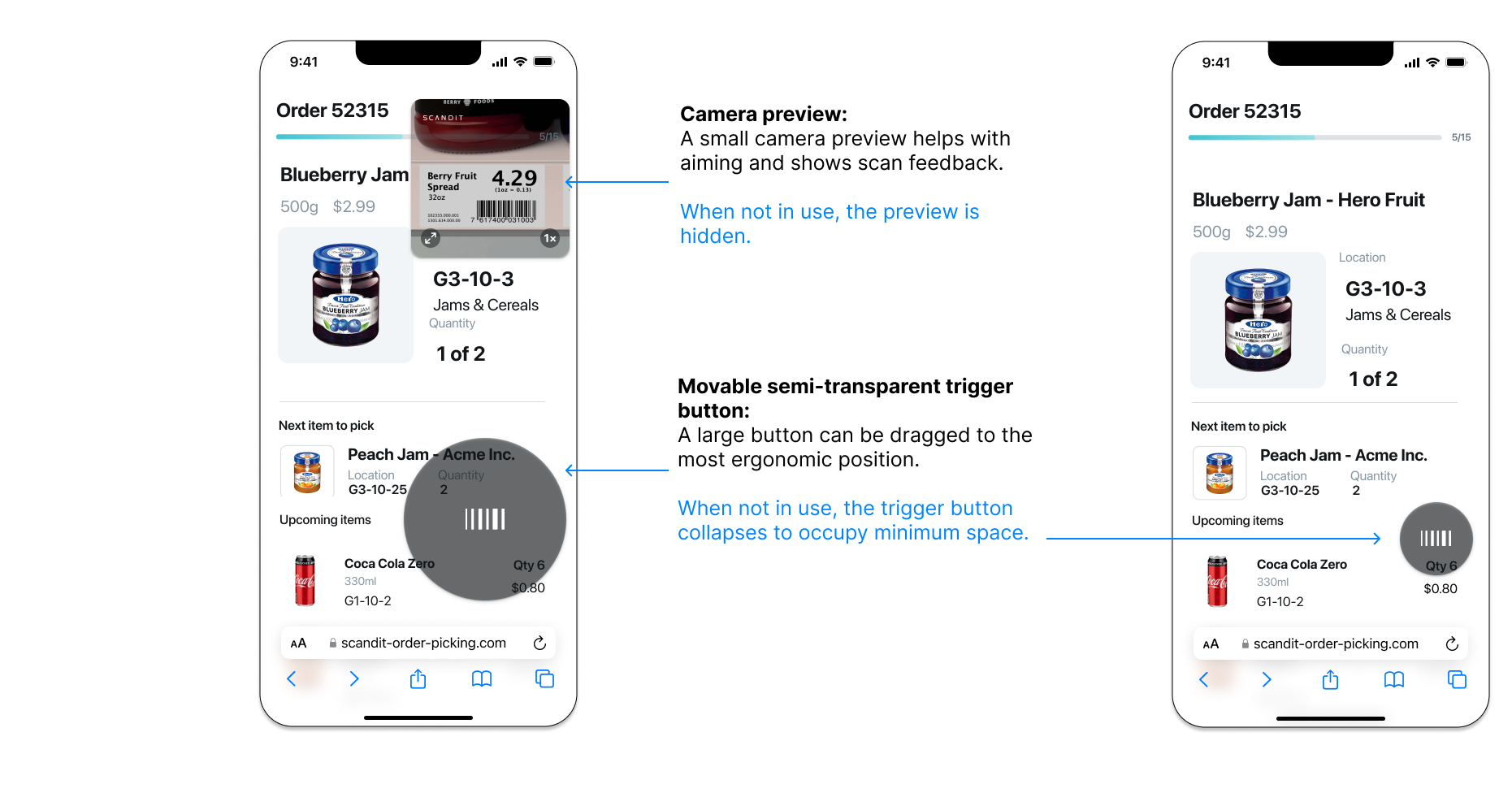
- Camera preview: A small camera preview that helps with aiming and shows scan feedback. When not in use, the camera preview is hidden. It can be expanded and hosts easy to access controls (zoom level, flash etc).
- Trigger button: A large-sized, semi-transparent floating button that users can drag to position it in the most ergonomic position. When not in use, the trigger button collapses to occupy less space.
There are additional UI elements available for displaying additional scanning modes, errors, or providing feedback to the user. These are described in the Advanced section.
Workflow Description
When SparkScan is started, the UI presents just the trigger button, collapsed. The user can move the trigger button by simply dragging it around: the position of the trigger button is remembered across sessions, so the user can place the button where it's the most comfortable to use. To start scanning, the user can simply tap on it.
When the scanner is active, the mini preview is shown. The mini preview too can be placed anywhere in the view by simply pressing on it for a little while and then dragging it around. Also the position of the mini preview is remembered across sessions, so the user can place it where it prefers (e.g. not to cover an important information at the top of the app).
In the default configuration:
- Upon scan the user will receive audio/haptic feedback confirming the scan, and the mini preview will display the scanned barcode for a small amount of time before fading away.
- Tapping on the trigger button or the mini preview will restart immediately the scanner.
Upon completing the scanning process (or to interact with the customer app layer), the user can tap in any area outside the trigger button and the mini preview. This collapses the scanner button, going back to the initial state.
If instead of tapping on the trigger button the user taps and holds it pressed, he will be able to scan multiple barcodes in a row. The scanner will stop when the trigger button is released.
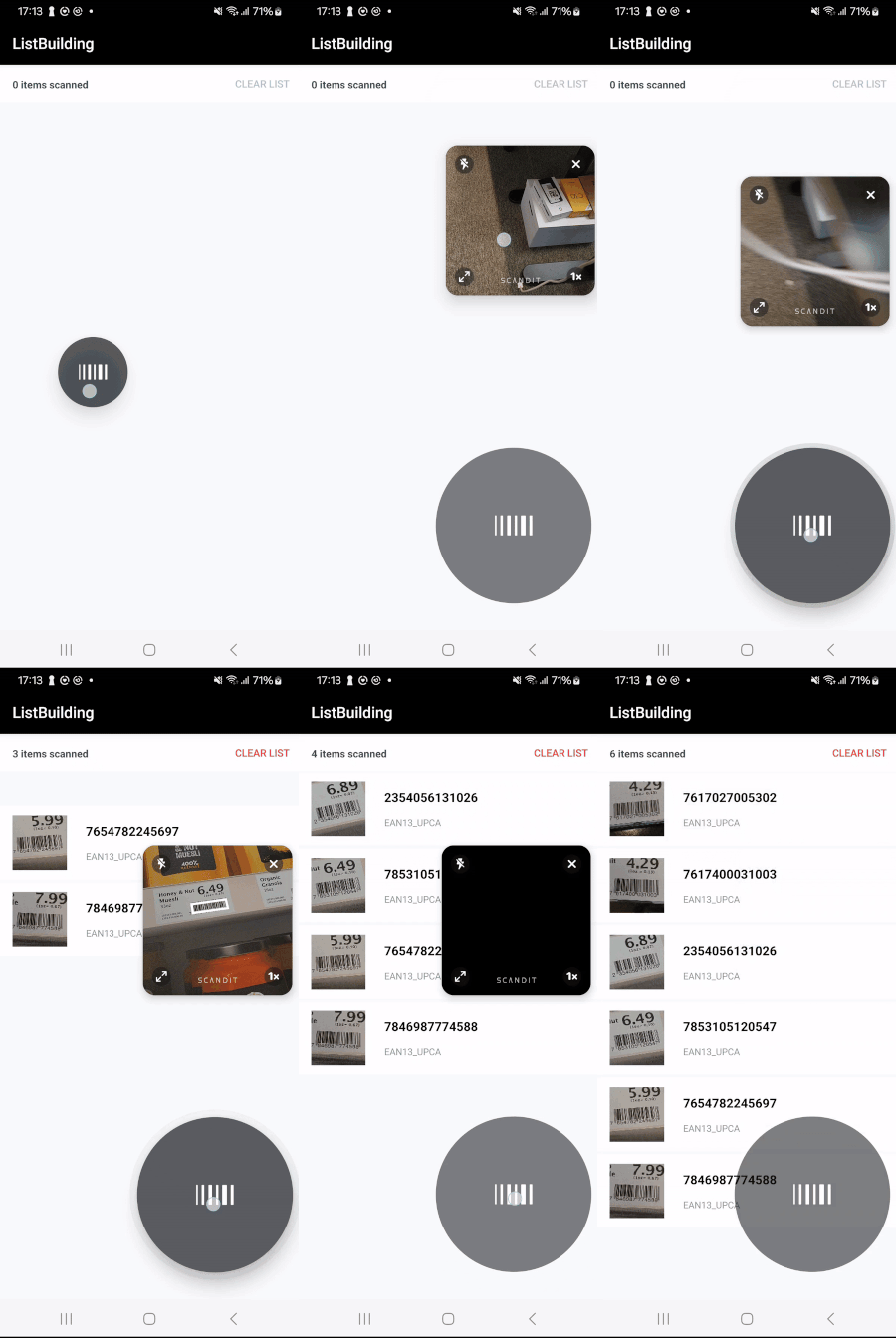
List building use case using SparkScan.
The default workflow just described has been carefully designed as a result of extensive user testing and customer feedback from the field.
But not all use-cases look the same, and your needs may differ for most users. That's why SparkScan comes with a set of options to configure the scanner and to best fit in the desired workflow. Check the Workflow Options guide to discover more.
Supported Symbologies
SparkScan supports all of the major symbologies listed here: Barcode Symbologies.
AI-Powered Features
SparkScan includes AI-powered scanning capabilities that enhance accuracy and user experience. These features automatically handle challenging scenarios such as avoiding unintentional scans, selecting barcodes in dense environments, scanning damaged barcodes with OCR fallback, and intelligently filtering duplicate scans. Learn more about these capabilities in our AI-Powered Barcode Scanning guide.